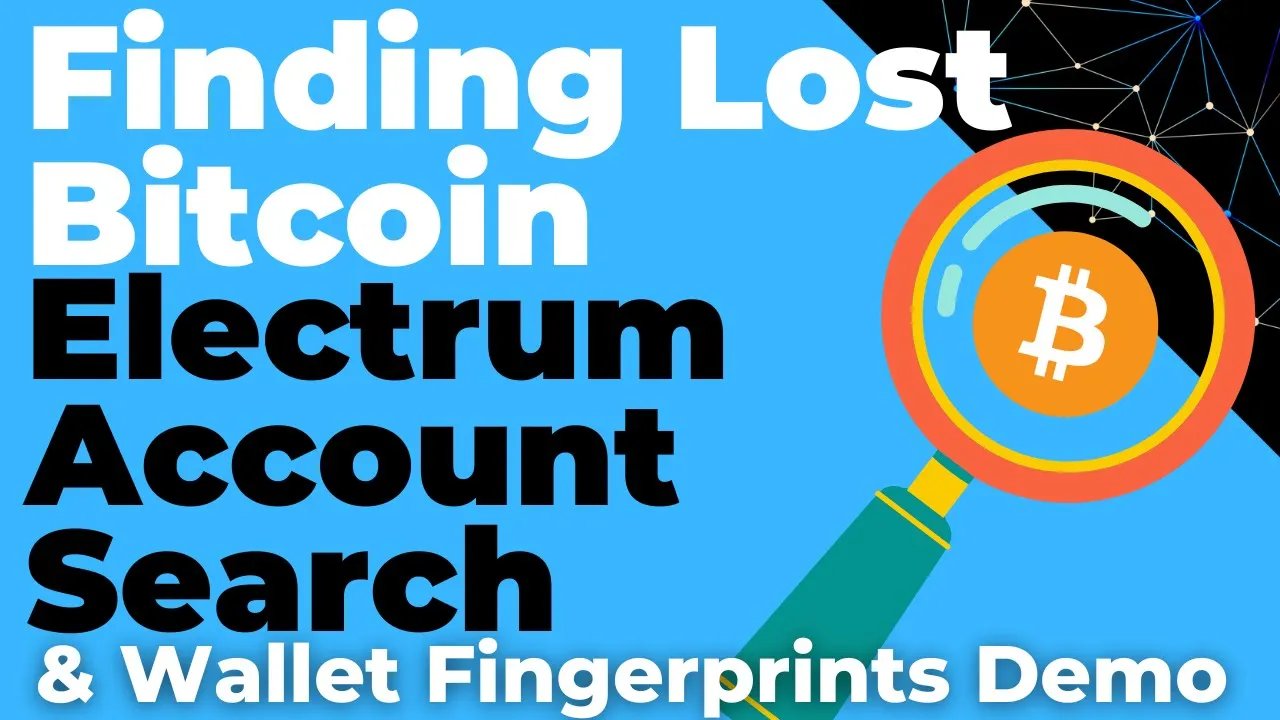
So you have sent some funds and they never arrived in your wallet. What do you do next?
One of the most powerful tools you can use is a block explorer. A block explorer lets you see much more than your wallet usually shows you, including balances on other chains and tokens that your wallet may not display by default. In this article, I will walk through how to use common explorers such as Etherscan, Blockscan, FTM Scan, BscScan and DeBank to locate missing funds, check what is really happening in a transaction, and avoid some of the mistakes and scams I see all the time.
If you want to see this demonstrated on screen, Watch the video.
Stuck with a wallet recovery?
I maintain BTCRecover and have helped people recover seed phrases, passphrases and wallet passwords since 2019. Book a one-hour video session and I’ll walk you through doing the recovery yourself, without sharing your seed. Or, if you’d rather I run it, a trusted recovery is charged only if it succeeds.
Private sessions: US$100 per hour. Trusted recovery: 10% of recovered funds. I never contact people first and will never ask for your seed phrase over chat or email.
Why block explorers matter when funds are missing
Wallets can be helpful, but they only show what they are configured to show. If a wallet does not have a network enabled, or if it does not support a particular token, you may think your funds are gone when they are simply hidden from view.
A block explorer is useful because it lets you check the blockchain directly. You can paste in your wallet address and see:
- Your native token balance on that chain.
- Token transfers into and out of that address.
- Transaction details, including the
FromandTofields. - Whether the same address has activity on other Ethereum-compatible chains.
This is especially important now because there are many Ethereum-compatible networks: Ethereum, BSC, Fantom, HECO, Polygon/Matic, Avalanche C-Chain and others. It is easy to send funds to the right wallet address but use a chain your wallet does not show by default.
The demo setup: one wallet address, multiple chains
For this example, I set up a test wallet in Trust Wallet. I used the Ethereum receive address and sent several different assets to that same address:
- Ethereum
- Binance-pegged Ethereum
- HECO token
- FTM
- BNB
- AVAX
After refreshing the wallet, some of the funds were visible automatically, but others were missing. That is a common situation. The funds may still be at your address on another chain; they just are not being displayed in the wallet yet.
The first step is to check what the blockchain actually says.
Step 1: Check your address on Etherscan
Start with Etherscan if you want to see Ethereum activity for your address. Paste your wallet address into the search bar and press search.
This will show your Ethereum balance, token balances and transaction history on Ethereum. If you are checking a transfer from an exchange or another wallet, this is a good first place to confirm whether the funds arrived on Ethereum itself.
One important point: the dollar value may differ slightly between your wallet and Etherscan because they may use different price sources. The number that matters most is the token balance. If Etherscan shows 1 ETH at your address and your wallet also shows 1 ETH, then the Ethereum side matches.

Step 2: Use Blockscan to check multiple chains at once
If your funds are not showing where you expect them, a multi-chain explorer can save time. In this example, after checking the address on Etherscan, I could see that the same address had activity on another chain. Clicking through took me to Blockscan, which searched my wallet address across multiple explorers.
This is one of the fastest ways to find missing funds. Instead of manually checking every explorer, you can paste your address into a multi-chain tool and see where that address has transactions or balances.
In the demo, Blockscan showed that the address had activity on Fantom. That was the clue I needed: the FTM was at my wallet address, but Trust Wallet was not showing it yet.

Step 3: Open the correct chain explorer to confirm the balance
Once Blockscan points you toward a chain, open that chain’s official explorer. For Fantom, I opened FTM Scan and pasted in the same wallet address.
There, I could see the missing FTM balance sitting at my address. The funds were not lost; they were just on a network that Trust Wallet had not displayed yet.
This is where many people get confused. They look only inside their wallet, see no FTM, and assume something went wrong. But the blockchain shows the truth: the funds are there.
Step 4: Enable the missing chain in your wallet
If you are using a wallet like Trust Wallet, the fix may be simple: enable the network.
In this example, I went into the settings in Trust Wallet, turned on FTM, and the balance appeared immediately. No new address was needed. The same Ethereum-compatible address can hold assets on multiple chains, but your wallet must know to look at each chain.
If you are using MetaMask, the process is different because MetaMask usually requires you to add networks manually. Many Etherscan-based explorers provide a button that prompts MetaMask to add the network for you. For example, while viewing an address on FTM Scan, I could click the “Add Fantom Network” button, approve it in MetaMask, switch to that network, and see the same FTM balance.

This is useful, but it also requires care. Only add networks from sources you trust. If someone sends you a custom link or tells you to add a network because of a “bonus,” “airdrop” or “recovery,” stop and verify everything independently.
Step 5: Use DeBank as another multi-chain view
Another useful option is DeBank. You can paste your wallet address into the search bar, and it shows balances across multiple chains in one interface.
This is helpful when you want a quick overview of where your funds may be sitting. DeBank can show token balances, transaction history, NFTs and other data depending on what exists for that address. It also lets you filter by chain if you only care about one network at a time.
One thing to understand: if you click into a specific transaction from DeBank, it may take you back to the underlying explorer such as Etherscan or BscScan. That is normal. DeBank gives you an aggregated view, while the chain explorers give you the raw blockchain data.

What to look for in basic explorer data
When you open an address on Etherscan, BscScan, FTM Scan or another similar explorer, you will usually see several important sections:
-
Native balance
This is the main token of that chain, such as ETH on Ethereum, BNB on BSC, FTM on Fantom, HT on HECO and so on. -
Token balances
These are tokens built on top of the chain, often called BEP-20 tokens on BSC or similar standards on other EVM chains. -
Normal transactions
These show transfers of the native currency. They usually have a simpleFromandTo. -
Token transactions
These show token transfers involving smart contracts. They may include extra fields such as method, input data, gas details and contract information.
Understanding the difference between normal transactions and smart-contract-based transactions is important because it helps prevent one of the most common mistakes I see.
Warning: do not copy a smart contract “To” address
A simple transfer usually looks straightforward. You can open the transaction hash and see that funds moved from one wallet address to another wallet address. In that case, the To field may be your own wallet address.
But token transactions are different. If you click on a BEP-20 or other smart-contract-based transaction, the To address is often not your wallet address. It may be a smart contract address used to process the token transfer.
This trips people up constantly. They see an old transaction that looks like it went “to” their wallet, copy the To address from the explorer, and use that as their receive address. If that address is actually a smart contract, you can lose your funds by sending directly there.

The rule is simple: never copy an address from a block explorer as your receive address. Always use the receive tab inside your wallet. The receive screen gives you the correct address for the network and asset you intend to send or receive.
Warning: do not send funds back to an exchange withdrawal “From” address
Another common mistake happens after someone withdraws from an exchange. They see a transaction in their explorer where funds came from some large From address, then they try to send funds back to that same address because they think it is their deposit address.
This is dangerous. The address your funds came from when you withdraw from an exchange is not necessarily the same as your personal deposit address for that exchange. If you send funds back to the wrong exchange address, they may be lost. The exchange might help you recover them, but there is no guarantee.
If you need to return funds or make another transfer related to an exchange, use the exact deposit address shown in that exchange account for the correct network and asset. Do not guess from a transaction history page.
Scam warning: watch-only explorer pages are not wallets
Scammers often use block explorers to trick new users. One basic method is to send someone a link to an explorer page and say, “This is your wallet. I have set it up for you.”
The victim may see a balance on the page and become excited. The scammer may then ask them to add more funds to get returns or unlock withdrawals. Eventually, when the person tries to withdraw, they realize they cannot access anything.
The sad reality is this: a block explorer page does not prove ownership of private keys. If you did not set up the wallet yourself and do not control the private key or seed phrase, you cannot spend those funds just because you can see them in an explorer.
A watch-only address may show balances, but it does not give you spending authority unless you have the corresponding private key. This is one of the most important lessons for new users: seeing a balance on a public blockchain page is not the same as owning or controlling that balance.
Scam warning: fake chains can rename networks and symbols
Another scam I have seen involves fake or manipulated network settings in wallets such as MetaMask. A scammer may get you to add a custom network, then change the network name or currency symbol so it looks like something else.
For example, someone might see an account that says “Ethereum” with 2.6 ETH displayed. In reality, that balance could be on HECO or another chain, but the wallet has been configured to show a misleading name and symbol. The scammer may send you a random token and tell you it is real Ethereum, or convince you that your wallet contains more than it really does.

The giveaway is simple: check the official chain explorer. If MetaMask says you have 2.6 ETH on Ethereum, paste your address into Etherscan. If Etherscan shows a different balance, then something is wrong with how the wallet or network is configured.
Your wallet can lie to you if it has been set up incorrectly or maliciously. The blockchain explorer gives you an independent check. That is one of the most powerful things about explorers: they let you verify what your wallet is showing.
A practical checklist when funds are missing
If you have sent funds and cannot see them in your wallet, work through this list calmly:
-
Confirm the transaction was successful.
Open the relevant explorer and check whether the transaction status shows success. If it failed or reverted, that changes what happened. -
Check the exact address.
Make sure you are looking at the same address you used in your wallet. One wrong character can lead to a completely different account. -
Check the correct chain.
The right address may still be on the wrong network. Use a multi-chain tool such as Blockscan or DeBank to see whether the address has balances elsewhere. -
Open the official explorer for that chain.
If you find activity on Fantom, check FTM Scan. If you find activity on BSC, check BscScan. If it is Ethereum, check Etherscan. -
Enable or add the network in your wallet if needed.
In Trust Wallet, enable the relevant chain. In MetaMask, add the correct network carefully and only from a trusted source. -
Never copy receive addresses from explorer transactions.
Use only the receive tab inside your wallet for receiving funds. -
Verify balances independently.
If someone tells you to install an app, add a network or send more funds to unlock assets, stop and verify everything on official sources.
Why this gets harder with so many EVM chains
The growth of Ethereum-compatible chains has made crypto more flexible, but it has also made it easier to lose funds by accident. Sending to the right address does not always mean sending on the right chain. A wallet may support one network today and another tomorrow, and balances can exist across multiple networks under the same address.
The good news is that many explorers share a similar interface once you understand Etherscan-style pages. Once you know how to read an address page, transaction details and token transfers on one explorer, it becomes much easier to apply that knowledge to another chain.
That makes multi-chain explorers especially valuable for finding funds that are not where you expect them to be. They do not recover private keys or magically reverse transactions, but they can show you exactly what happened at the blockchain level.
When to get help
If you have sent funds to the wrong address and are struggling to locate them, leave a reply in the comments on the video; I do my best to reply to everything. If you are completely stuck and need more hands-on guidance, you can also request a paid consultation or trusted recovery service through my website: recovery services and consultations.
Conclusion
Block explorers are one of the most practical tools in crypto. They let you check balances, inspect transactions, find missing funds on other chains and verify what your wallet is really showing. But they can also be used for mistakes and scams if you do not understand how to read them carefully.
The key habits are simple:
- Use a multi-chain explorer when funds are missing.
- Confirm the balance on the official chain explorer.
- Enable or add networks in your wallet only from trusted sources.
- Never copy a
Toaddress from an explorer as your receive address. - Do not send funds back to an exchange withdrawal
Fromaddress unless you know it is the correct deposit address. - Remember that seeing a balance on an explorer page does not mean you control the private key.
Once you get comfortable with these tools, they become one of the best ways to understand what is happening inside your wallet and across the many Ethereum-compatible networks we use today.
Questions from viewers
Common questions from the comments on this video, with my answers.
What should I do if I sent funds to an exchange deposit address on the wrong network or chain?
Unfortunately, since you sent the funds to a custodial wallet or exchange, your only option is to contact their support team and hope they can help. It is not my responsibility to recover funds from exchanges, and often it is due to poor design on the exchange's part regarding how they handle different chains.
Why does MetaMask warn that network details don't match its records when adding a new chain?
MetaMask pulls data from community-submitted sources like chainlist.org, which may differ slightly from the data provided by Etherscan-hosted block explorers. This discrepancy causes the warning, but it generally indicates the data source difference rather than a security threat in itself. (Apps and tools change, so check the current version if something looks different.)
How can I recover a lost password for a keystore file (JSON v4) or similar encrypted wallet?
You can try using tools like BTCRecover to brute-force the password if the encryption is standard. You will need a pretty good idea of what your password was to make this feasible. If the specific wallet type isn't supported, you might need to sponsor the addition of that feature to the tool.
Is there a tool that automatically traces transaction origins for tax purposes without manual checking?
Not really. There are companies that sell services like Chainalysis, but these are mostly 'best guess' analyses and not perfect automatic solutions for tracing every origin manually.
I am stuck trying to find my missing funds. How can I get direct help from you?
If you are totally stuck, you can request a paid private session. These are $100 USD for an hour over Zoom or Skype. You can fill out the form on our website to schedule a time with us. (Apps and tools change, so check the current version if something looks different.) If you’d like hands-on help, see wallet recovery services.
Stuck with a wallet recovery?
I maintain BTCRecover and have helped people recover seed phrases, passphrases and wallet passwords since 2019. Book a one-hour video session and I’ll walk you through doing the recovery yourself, without sharing your seed. Or, if you’d rather I run it, a trusted recovery is charged only if it succeeds.
Private sessions: US$100 per hour. Trusted recovery: 10% of recovered funds. I never contact people first and will never ask for your seed phrase over chat or email.
Found this useful?
These guides are free and ad-free. You can support them by sharing them, subscribing on YouTube, or sending a tip.